Porsche Informatik WSL Distribution
This distribution is based on the current Fedora and includes the following:
- Installed packages
- Docker
- mise for package management
- Includes Zscaler and Porsche certificates. The script
fix-java-certswhich will add the certificates to all JVMs under~/.local. - Automatic Artifactory config for Maven, NPM and Docker with
poi-artifactory-setup - Auto-update via the script
poi-update. The script will update your system once a month - it will ask you when opening a shell.
Installation
-
If you had a prior version of WSL installed (before version 1.0.0) make sure you uninstall all WSL installs, restart your computer and then continue with the installation.
-
Download and install WSL2 (
wsl --install --no-distribution): https://learn.microsoft.com/en-us/windows/wsl/install. You will need Administrator rights for that (but do not launch the command as Admin). -
Install the "POI AnyConnect Config for WSL" via RealmJoin. This will set
172.21.96.1as the IP of your WSL adapter (usingNatGatewayIpAddressandNatNetworkinHKEY_LOCAL_MACHINE\SOFTWARE\Microsoft\Windows\CurrentVersion\Lxss).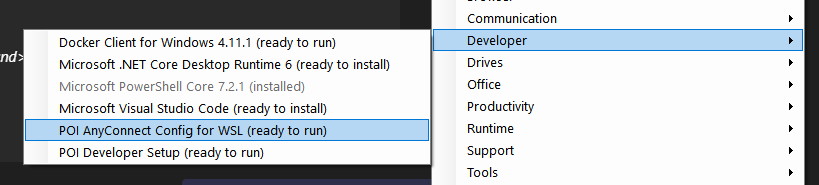
(You'll have to restart WSL
wsl --shutdownafter the installation if you install this later) -
For Windows 11 > 22H2 create a .wslconfig file in your Windows home directory (
$env:USERPROFILE\.wslconfig) with the following content:[wsl2] dnsTunneling=true -
Important: please restart your PC now!
-
Download the current Porsche Informatik WSL distribution from https://artifactory.porscheinformatik.com/artifactory/raw-wsl-distros/ and unzip the containing
.tarfile. -
Open a PowerShell and import the WSL distribution with:
mkdir C:\Dev\WSL\POI-Fedora
wsl --import POI-Fedora C:\Dev\WSL\POI-Fedora "C:\Users\$env:USERNAME\Downloads\POI-Fedora-{date}.tar"
wsl --set-default POI-Fedora
First Steps
Launch the distribution and create your user. In Powershell run
wsl -d POI-Fedora
This will ask you for username and password to create your new Linux user.
Then it will perform the development setup (script wsl-first-run-user)
Follow the instructions in the output (wsl -t POI-Fedora and then wsl -d POI-Fedora).
Optional steps after the setup
-
If you want to use more (or less) memory/CPU with WSL you can edit
$env:USERPROFILE\.wslconfigExample: using maximum of 40GB RAM + 8GB swap:
[wsl2]
swap=8GB
memory=40GB
See also Advanced settings configuration in WSL.
-
Install additional software via
apt,brewormise -
brew: the distro includes Homebrew. You can use this to install a wide range of applicationsbrew install kubectl -
mise: the distro also includesmise. This can be used to install CLI tools (also with different versions per project):mise global <tool>@<version>for example:
mise global python@latestThis will install the tool and set it as the global default.
-
WSL Hello sudo - allows login with face/touch id
See install instruction here: https://github.com/nullpo-head/WSL-Hello-sudo
-
Nerd Fonts
Get your favorite font from e.g. https://www.nerdfonts.com/font-downloads
Download and unzip into "~/.local/share/fonts" and then run "fc-cache -fv"
-
Big Mouse Cursor
If you like big mouse pointers install the package
big-cursor:sudo apt install big-cursor
Changelog
2026-06-05
- Switch to Fedora 44 as base distribution
- Use Java 25 per default
- Use Node 24 per default
- Add pnpm as package manager for Node.js
- Remove Google Chrome (if you want to use it, you can install it yourself: https://docs.fedoraproject.org/en-US/quick-docs/installing-chromium-or-google-chrome-browsers/)
- zsh config changes
- Use zinit for plugin management
- Add fzf and zoxide for better navigation
- Replace starship with Powerlevel10k
2025-08-20
- Switch to Debian 13 as base distribution
- Use Java 21 per default
- Use Node 22 per default
- Use Windows ssh for 1Password SSH-Agent support
- zsh config changes
- Change zsh setup to use zinit
- Use Powerlevel10k instead of Starship
- Add fzf and zoxide for better navigation
2024-06-29
- Update versions in poi-update script
2024-03-27
- Add
mise self-updateto POI update script
2024-01-12
- Remove POI-specific network setup
- Completly remove snap and snapd
- Switch from rtx to mise (see https://mise.jdx.dev/rtx.html)
2023-10-04
- Add Homebrew to the distribution
- Remove Eclipse and Intellij IDEA setup on first run
2023-03-15
- Fix password setting - loop until set
- Added rtx shims https://github.com/jdxcode/rtx#shims
2023-03-14
- Switch default shell to
zsh - Fix errors with hostname and wsl-first-run-user
- Node.js 18.15.0
- Helm 3.11.2
2023-02-23
- Reduce image size by cleaning up and zipping result
- Install asdf to make Java plugin happy with rtx
2023-02-01
- Additional packages installed:
- Google Chrome
- ntpdate (for fixing the time in WSL)
- zip
- Register wslview as default browser
- Fix DNS issue with multiple WSL distros running